


Chrome is most popular browser among the all other used on any platform. The browser was first launched in 2008, since that it has been gaining popularity because of its clean look and easy to use interface. Though it is pretty much secure as Google is making some great efforts to secure our privacy, still, there are some sites who try to steal your data. In this article, we will be discussing How to Block a Website in Chrome Browser.
Windows Host Flie
To modify windows host file is the best way to block any website from its root. It will make website totally inaccessible from your windows machine, doesn’t matter which browser you are using. Below is given how to modify Windows host file to block any website on your Chrome browser or any other:
For Windows 8, 10
- Press the Windows key.
- Type Notepad in the search field.
- In the search results, right-click Notepad and select Run as administrator.
- From Notepad, open the following file: c:\Windows\System32\Drivers\etc\hosts
- Make the necessary changes to the file.
- Click File > Save to save your changes.

For Windows 7 and Vista
- Click Start > All Programs > Accessories.
- Right-click Notepad and select Run as administrator.
- Click Continue on the Windows needs your permission UAC window.
- When Notepad opens, click File > Open.
- In the File name field, type C:\Windows\System32\Drivers\etc\hosts.
- Click Open.
- Make the necessary changes to the file.
- Click File > Save to save your changes.
Windows NT, Windows 2000, and Windows XP
- Click Start > All Programs > Accessories > Notepad.
- Click File > Open.
- In the File name field, type C:\Windows\System32\Drivers\etc\hosts.
- Click Open.
- Make the necessary changes to the file.
- Click File > Save to save your changes.
The process to block website:
Find below lines:
#64.49.219.194 localhost
Add that line underneath it (we have used domain.com to block, you can replace it with any other which you want to block)
64.49.219.194 domain.com

That’s it! Done!
Chrome Plugin
This is an alternative way to block any website in Chrome browser. It gives you to ability even block some bad words. The “Block Site” plugin working perfectly for me.
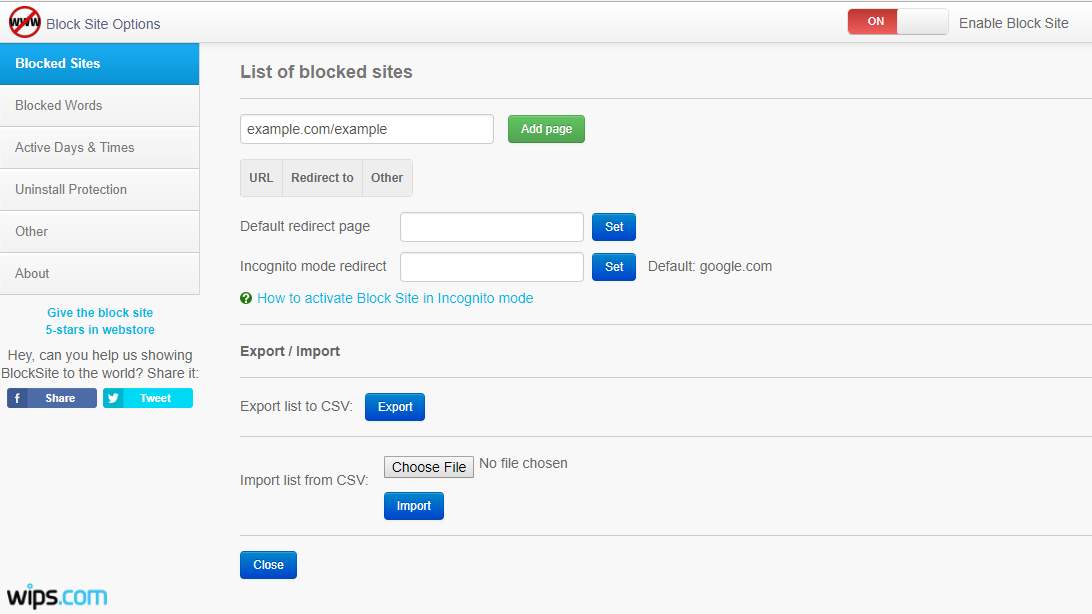
Just add site name in the first column which you want to block, also redirect option is given if you want it to redirect to any other page. If you are not interested just leave it blank. That’s all that is required to block any URL from Google Chrome.

A warning will prompt when you will try to visit block site or it will be redirected to given URL if you have provided a link to redirect.

Now, hopefully, you understood How to Block a Websites in Chrome browser. If you still have any question or suggestion let us know in below comment section!


